Interactive reporting with Shiny (III)
Lecture 23
Cornell University
INFO 3312/5312 - Summer 2026
April 23, 2026
Announcements
Announcements
- Homework 06
- Project 02 draft
Learning objectives
- Utilize {bslib} for modern Shiny UI design
- Use {bslib} components to enhance the UI of a Shiny app
- Implement dynamic theming
- Implement natural language interfaces with {querychat}
- Deploy a Shiny app
Application exercise
ae-23
Instructions
- Go to the course GitHub org and find your
ae-23(repo name will be suffixed with your GitHub name). - Clone the repo in Positron, run
renv::restore()to install the required packages, open the Quarto document in the repo, and follow along and complete the exercises. - Render, commit, and push your edits by the AE deadline – end of the day
Modern UIs with {bslib}
Shiny & Bootstrap
Much of the interface provided by Shiny is based on the HTML elements, styling, and Javascript provided by the Bootstrap library.
Knowing the specifics of HTML (and Bootstrap specifically) are not needed for working with Shiny - but understanding some of its conventions goes a long way to helping you customize the elements of your app (via custom CSS and other tools).
This is not the only place that Bootstrap shows up in the R ecosystem - Quarto HTML documents use Bootstrap for styling as well.
{bslib} components
One of the other features of the {bslib} package is that it also provides a number of modern UI components that you can use to enhance the look and feel of your Shiny apps.
Some of these components include:
- Cards
- Value boxes
- Sidebars
- Popovers & tooltips
These components all come from Bootstrap and are designed to be modular and flexible so that you can use them in a variety of ways.
Cards
Cards are a UI element that you will recognize from many modern websites. They are rectangular containers with borders and padding that are used to group related information. When utilized properly to group elements they help users better digest, engage, and navigate through content
Styling cards
Cards can be styled using the class argument, this is used to apply Bootstrap classes to the card and its components.
Multiple card bodies
Cards are also super flexible and can contain multiple card_body() elements. This can be useful for creating complex layouts.
Value boxes
Value boxes are the other major UI component provided by {bslib}. They are a simple way to display a value and a label in a styled box. They are often used to display key metrics in a dashboard.
Demo 07 - Shiny + Cards
demos/demo-07.R
library(tidyverse)
library(shiny)
library(bslib)

d <- read_csv(here::here("data/weather.csv"))

d_vars <- c(
  "Average temp" = "temp_avg",
  "Min temp" = "temp_min",
  "Max temp" = "temp_max",
  "Total precip" = "precip",
  "Snow depth" = "snow",
  "Wind direction" = "wind_direction",
  "Wind speed" = "wind_speed",
  "Air pressure" = "air_press"
)

ui <- page_sidebar(
  title = "Weather Data",
  sidebar = sidebar(
    selectInput(
      "region",
      "Select a region",
      choices = c("West", "Midwest", "Northeast", "South")
    ),
    selectInput(
      "name",
      "Select an airport",
      choices = c()
    ),
    selectInput(
      "var",
      "Select a variable",
      choices = d_vars,
      selected = "temp_avg"
    )
  ),
  card(
    card_header(
      textOutput("title")
    ),
    card_body(
      plotOutput("plot")
    )
  )
)

server <- function(input, output, session) {
  observe({
    updateSelectInput(
      session,
      "name",
      choices = d |>
        distinct(region, name) |>
        filter(region == input$region) |>
        pull(name)
    )
  })

  output$title <- renderText({
    names(d_vars)[d_vars == input$var]
  })

  d_city <- reactive({
    req(input$name)
    d |>
      filter(name %in% input$name)
  })

  output$plot <- renderPlot({
    d_city() |>
      ggplot(mapping = aes(x = date, y = .data[[input$var]])) +
      geom_line() +
      theme_minimal()
  })
}

shinyApp(ui = ui, server = server)
Dynamic UIs
Adding value boxes
Previously we had included a table that showed minimum and maximum temperatures - lets try presenting these using value boxes instead.
Before we get to the code lets think a little bit about how we might do this:
Any one see a potential issue with this?
Each value box shows a dynamic value that is calculated from the data - so we need a textOutput() and corresponding renderText() for each value box, and will need even more if we want to change the color or icon based on the value.
uiOutput() and renderUI()
To handle situations like this Shiny provides the ability to dynamically generate UI elements entirely within the server() function.
For our case we can create all of the value boxes in a single renderUI() call making our code simpler and more maintainable.
Additionally, since renderUI() is a reactive context we can perform all of our calculations in the same place at the same time.
Demo 08 - Value boxes
demos/demo-08.R
library(tidyverse)
library(shiny)
library(bslib)

d <- read_csv(here::here("data/weather.csv"))

d_vars <- c(
  "Average temp" = "temp_avg",
  "Min temp" = "temp_min",
  "Max temp" = "temp_max",
  "Total precip" = "precip",
  "Snow depth" = "snow",
  "Wind direction" = "wind_direction",
  "Wind speed" = "wind_speed",
  "Air pressure" = "air_press"
)

ui <- page_sidebar(
  title = "Weather Data",
  sidebar = sidebar(
    selectInput(
      "region",
      "Select a region",
      choices = c("West", "Midwest", "Northeast", "South")
    ),
    selectInput(
      "name",
      "Select an airport",
      choices = c()
    ),
    selectInput(
      "var",
      "Select a variable",
      choices = d_vars,
      selected = "temp_avg"
    )
  ),
  card(
    card_header(
      textOutput("title")
    ),
    card_body(
      plotOutput("plot")
    )
  ),
  uiOutput("valueboxes")
)

server <- function(input, output, session) {
  observe({
    updateSelectInput(
      session,
      "name",
      choices = d |>
        distinct(region, name) |>
        filter(region == input$region) |>
        pull(name)
    )
  })

  output$valueboxes <- renderUI({
    clean <- function(x) {
      round(x, 1) |> paste("°C")
    }

    layout_columns(
      value_box(
        title = "Average Temp",
        value = mean(d_city()$temp_avg, na.rm = TRUE) |> clean(),
        showcase = bsicons::bs_icon("thermometer-half"),
        theme = "success"
      ),
      value_box(
        title = "Minimum Temp",
        value = min(d_city()$temp_min, na.rm = TRUE) |> clean(),
        showcase = bsicons::bs_icon("thermometer-snow"),
        theme = "primary"
      ),
      value_box(
        title = "Maximum Temp",
        value = max(d_city()$temp_max, na.rm = TRUE) |> clean(),
        showcase = bsicons::bs_icon("thermometer-sun"),
        theme = "danger"
      )
    )
  })

  output$title <- renderText({
    names(d_vars)[d_vars == input$var]
  })

  d_city <- reactive({
    req(input$name)
    d |>
      filter(name %in% input$name)
  })

  output$plot <- renderPlot({
    d_city() |>
      ggplot(mapping = aes(x = date, y = .data[[input$var]])) +
      geom_line() +
      theme_minimal()
  })
}

shinyApp(ui = ui, server = server)
Demo 09 - Some {bslib} bells and whistles
demos/demo-09.R
library(tidyverse)
library(shiny)
library(bslib)

d <- read_csv(here::here("data/weather.csv"))

d_vars <- c(
  "Average temp" = "temp_avg",
  "Min temp" = "temp_min",
  "Max temp" = "temp_max",
  "Total precip" = "precip",
  "Snow depth" = "snow",
  "Wind direction" = "wind_direction",
  "Wind speed" = "wind_speed",
  "Air pressure" = "air_press"
)

ui <- page_sidebar(
  title = "Weather Data",
  sidebar = sidebar(
    selectInput(
      "region",
      "Select a region",
      choices = c("West", "Midwest", "Northeast", "South")
    ),
    selectInput(
      "name",
      "Select an airport",
      choices = c()
    ),
  ),
  card(
    card_header(
      textOutput("title"),
      popover(
        bsicons::bs_icon("gear", title = "Settings"),
        selectInput(
          "var",
          "Select a variable",
          choices = d_vars,
          selected = "temp_avg"
        )
      ),
      class = "d-flex justify-content-between align-items-center"
    ),
    card_body(
      plotOutput("plot")
    ),
    full_screen = TRUE
  ),
  uiOutput("valueboxes")
)

server <- function(input, output, session) {
  observe({
    updateSelectInput(
      session,
      "name",
      choices = d |>
        distinct(region, name) |>
        filter(region == input$region) |>
        pull(name)
    )
  })

  output$valueboxes <- renderUI({
    clean <- function(x) {
      round(x, 1) |> paste("°C")
    }

    layout_columns(
      value_box(
        title = "Average Temp",
        value = mean(d_city()$temp_avg, na.rm = TRUE) |> clean(),
        showcase = bsicons::bs_icon("thermometer-half"),
        theme = "success"
      ),
      value_box(
        title = "Minimum Temp",
        value = min(d_city()$temp_min, na.rm = TRUE) |> clean(),
        showcase = bsicons::bs_icon("thermometer-snow"),
        theme = "primary"
      ),
      value_box(
        title = "Maximum Temp",
        value = max(d_city()$temp_max, na.rm = TRUE) |> clean(),
        showcase = bsicons::bs_icon("thermometer-sun"),
        theme = "danger"
      )
    )
  })

  output$title <- renderText({
    names(d_vars)[d_vars == input$var]
  })

  d_city <- reactive({
    req(input$name)
    d |>
      filter(name %in% input$name)
  })

  output$plot <- renderPlot({
    d_city() |>
      ggplot(mapping = aes(x = date, y = .data[[input$var]])) +
      geom_line() +
      theme_minimal()
  })
}

shinyApp(ui = ui, server = server)
Theming
Bootswatch
Due to the ubiquity of Bootstrap, a large amount of community effort has already gone into developing custom themes.
bs_theme()
Provides a high level interface to adjusting the theme for an entire Shiny app, and is passed to the theme argument of of the page function of our UI (e.g. page_sidebar(), fluidPage(), etc.).
bs_theme() allows allows us to construct a theme object by specifying:
a bootstrap version via
versionargumenta bootswatch theme via
presetorbootswatchargumentsbasic color palette values (
bg,fg,primary,secondary, etc.)fonts (
base_font,code_font,heading_font,font_scale)and more …
Demo 10 - Dynamic theming
demos/demo-10.R
library(tidyverse)
library(shiny)
library(bslib)

d <- read_csv(here::here("data/weather.csv"))

d_vars <- c(
  "Average temp" = "temp_avg",
  "Min temp" = "temp_min",
  "Max temp" = "temp_max",
  "Total precip" = "precip",
  "Snow depth" = "snow",
  "Wind direction" = "wind_direction",
  "Wind speed" = "wind_speed",
  "Air pressure" = "air_press"
)

ui <- page_sidebar(
  theme = bs_theme(),
  title = "Weather Data",
  sidebar = sidebar(
    selectInput(
      "region",
      "Select a region",
      choices = c("West", "Midwest", "Northeast", "South")
    ),
    selectInput(
      "name",
      "Select an airport",
      choices = c()
    ),
    selectInput(
      "var",
      "Select a variable",
      choices = d_vars,
      selected = "temp_avg"
    )
  ),
  card(
    card_header(
      textOutput("title"),
    ),
    card_body(
      plotOutput("plot")
    )
  ),
  uiOutput("valueboxes")
)

server <- function(input, output, session) {
  bslib::bs_themer()

  observe({
    updateSelectInput(
      session,
      "name",
      choices = d |>
        distinct(region, name) |>
        filter(region == input$region) |>
        pull(name)
    )
  })

  output$valueboxes <- renderUI({
    clean <- function(x) {
      round(x, 1) |> paste("°C")
    }

    layout_columns(
      value_box(
        title = "Average Temp",
        value = mean(d_city()$temp_avg, na.rm = TRUE) |> clean(),
        showcase = bsicons::bs_icon("thermometer-half"),
        theme = "success"
      ),
      value_box(
        title = "Minimum Temp",
        value = min(d_city()$temp_min, na.rm = TRUE) |> clean(),
        showcase = bsicons::bs_icon("thermometer-snow"),
        theme = "primary"
      ),
      value_box(
        title = "Maximum Temp",
        value = max(d_city()$temp_max, na.rm = TRUE) |> clean(),
        showcase = bsicons::bs_icon("thermometer-sun"),
        theme = "danger"
      )
    )
  })

  output$title <- renderText({
    names(d_vars)[d_vars == input$var]
  })

  d_city <- reactive({
    req(input$name)
    d |>
      filter(name %in% input$name)
  })

  output$plot <- renderPlot({
    d_city() |>
      ggplot(mapping = aes(x = date, y = .data[[input$var]])) +
      geom_line() +
      theme_minimal()
  })
}

shinyApp(ui = ui, server = server)
{thematic}
Simplified theming of {ggplot2}, {lattice}, and {base} R graphics. In addition to providing a centralized approach to styling R graphics, {thematic} also enables automatic styling of R plots in Shiny, R Markdown, and RStudio.
In the case of our Shiny app, to get dynamic theming of our plot as well as our UI all we need to do is to include a call to thematic_shiny() before the app is loaded.
Learn more at https://rstudio.github.io/thematic/
Demo 11 - Full dynamic theming
demos/demo-11.R
library(tidyverse)
library(shiny)
library(bslib)

d <- read_csv(here::here("data/weather.csv"))

d_vars <- c(
  "Average temp" = "temp_avg",
  "Min temp" = "temp_min",
  "Max temp" = "temp_max",
  "Total precip" = "precip",
  "Snow depth" = "snow",
  "Wind direction" = "wind_direction",
  "Wind speed" = "wind_speed",
  "Air pressure" = "air_press"
)

ui <- page_sidebar(
  theme = bs_theme(),
  title = "Weather Data",
  sidebar = sidebar(
    selectInput(
      "region",
      "Select a region",
      choices = c("West", "Midwest", "Northeast", "South")
    ),
    selectInput(
      "name",
      "Select an airport",
      choices = c()
    ),
    selectInput(
      "var",
      "Select a variable",
      choices = d_vars,
      selected = "temp_avg"
    )
  ),
  card(
    card_header(
      textOutput("title")
    ),
    card_body(
      plotOutput("plot")
    )
  ),
  uiOutput("valueboxes")
)

server <- function(input, output, session) {
  bslib::bs_themer()

  observe({
    updateSelectInput(
      session,
      "name",
      choices = d |>
        distinct(region, name) |>
        filter(region == input$region) |>
        pull(name)
    )
  })

  output$valueboxes <- renderUI({
    clean <- function(x) {
      round(x, 1) |> paste("°C")
    }

    layout_columns(
      value_box(
        title = "Average Temp",
        value = mean(d_city()$temp_avg, na.rm = TRUE) |> clean(),
        showcase = bsicons::bs_icon("thermometer-half"),
        theme = "success"
      ),
      value_box(
        title = "Minimum Temp",
        value = min(d_city()$temp_min, na.rm = TRUE) |> clean(),
        showcase = bsicons::bs_icon("thermometer-snow"),
        theme = "primary"
      ),
      value_box(
        title = "Maximum Temp",
        value = max(d_city()$temp_max, na.rm = TRUE) |> clean(),
        showcase = bsicons::bs_icon("thermometer-sun"),
        theme = "danger"
      )
    )
  })

  output$title <- renderText({
    names(d_vars)[d_vars == input$var]
  })

  d_city <- reactive({
    req(input$name)
    d |>
      filter(name %in% input$name)
  })

  output$plot <- renderPlot({
    d_city() |>
      ggplot(mapping = aes(x = date, y = .data[[input$var]])) +
      geom_line()
  })
}

thematic::thematic_shiny()

shinyApp(ui = ui, server = server)
⌨️ Your turn - Exercise 06
Instructions
Using code provided in exercises/ex-06.R (which is the same as demo-09) experiment with {bslib}’s themer tool to explore different themes.
- Try changing the main theme as well as the foreground and background colors
- Try changing one or more of the accent colors
- Try the fonts being used (e.g. Prompt, Roboto, Oswald, Fira Sans) and changing the base font size
- Based on the output in your console, update the
bs_theme()call in the script to reflect the changes you made
Tip
Making a good theme can be challenging, instead try making the ugliest possible app. This is a lot easier and more fun and just as instructive.
12:00
querychat
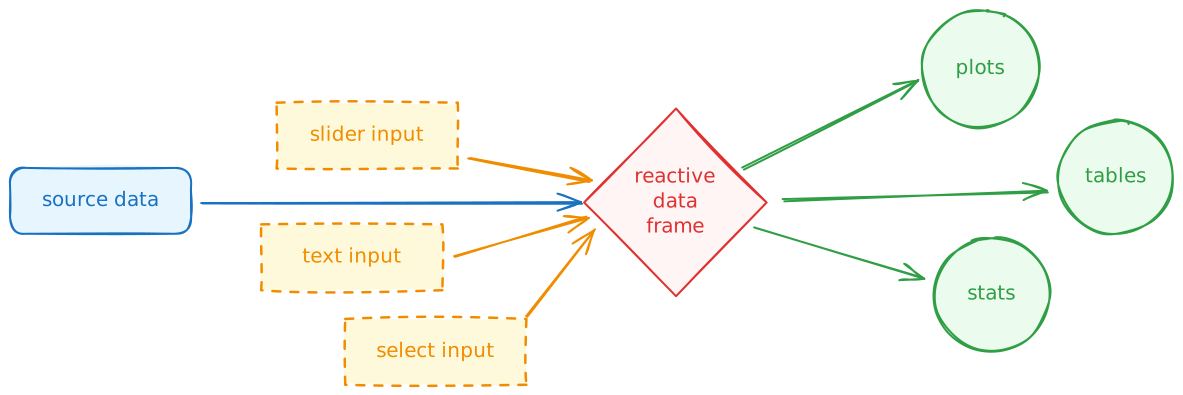
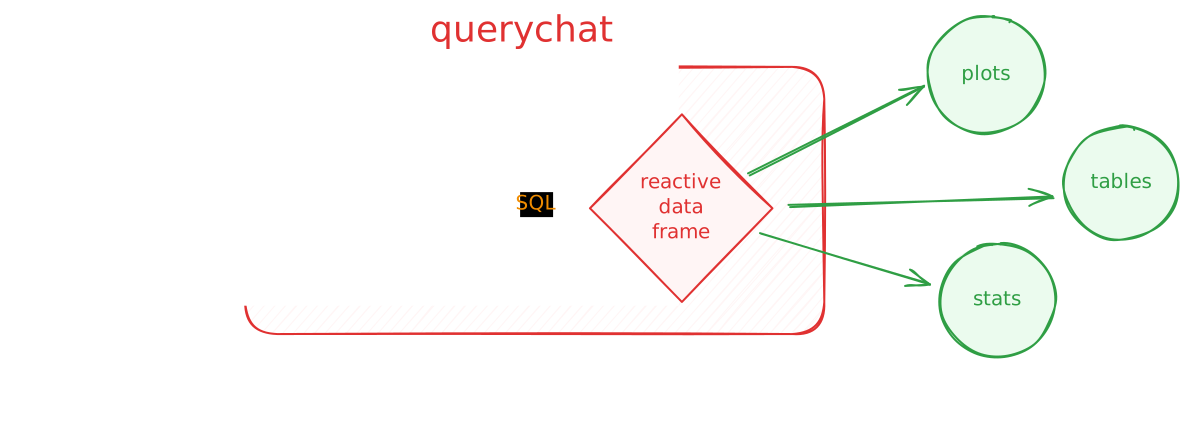
How it works
Natural language chat powered by LLMs
Does not provide the LLM direct access to raw data
It can only read or filter data by writing SQL
SELECTstatements- Reliability
- Transparency
- Reproducibility
Leverages DuckDB for its SQL engine
{querychat} in R
Demo 12 - {querychat} interface
demos/demo-12.R
library(dplyr)
library(ggplot2)
library(shiny)
library(bslib)
library(querychat)
library(plotly)

d <- readr::read_csv(here::here("data/weather.csv"))

d_vars <- c(
  "Average temp" = "temp_avg",
  "Min temp" = "temp_min",
  "Max temp" = "temp_max",
  "Total precip" = "precip",
  "Snow depth" = "snow",
  "Wind direction" = "wind_direction",
  "Wind speed" = "wind_speed",
  "Air pressure" = "air_press"
)

d_qc <- QueryChat$new(d)

ui <- page_sidebar(
  title = "Weather Data",
  sidebar = d_qc$sidebar(),
  card(
    card_header(
      textOutput("title"),
      popover(
        bsicons::bs_icon("gear", title = "Settings"),
        selectInput(
          "var",
          "Select a variable",
          choices = d_vars,
          selected = "temp_avg"
        )
      ),
      class = "d-flex justify-content-between align-items-center"
    ),
    card_body(
      plotlyOutput("plot")
    ),
    full_screen = TRUE
  ),
  uiOutput("valueboxes")
)

server <- function(input, output, session) {
  d_qc_vals <- d_qc$server()

  output$valueboxes <- renderUI({
    clean <- function(x) {
      round(x, 1) |> paste("°C")
    }

    layout_columns(
      value_box(
        title = "Average Temp",
        value = mean(d_qc_vals$df()$temp_avg, na.rm = TRUE) |> clean(),
        showcase = bsicons::bs_icon("thermometer-half"),
        theme = "success"
      ),
      value_box(
        title = "Minimum Temp",
        value = min(d_qc_vals$df()$temp_min, na.rm = TRUE) |> clean(),
        showcase = bsicons::bs_icon("thermometer-snow"),
        theme = "primary"
      ),
      value_box(
        title = "Maximum Temp",
        value = max(d_qc_vals$df()$temp_max, na.rm = TRUE) |> clean(),
        showcase = bsicons::bs_icon("thermometer-sun"),
        theme = "danger"
      )
    )
  })

  output$title <- renderText({
    names(d_vars)[d_vars == input$var]
  })

  output$plot <- renderPlotly({
    p <- d_qc_vals$df() |>
      ggplot(mapping = aes(x = date, y = .data[[input$var]])) +
      geom_line(mapping = aes(group = airport_code)) +
      theme_minimal()

    ggplotly(p)
  })
}

shinyApp(ui = ui, server = server)
Enhancing {querychat}
- Provide a fixed user greeting
- Augment the system prompt
- Data description
- Additional instructions
- Use a different LLM provider/model
Deploying Shiny apps
⌨️ Your turn - exercise 07 (part 1)
Instructions
Go to Posit Connect Cloud and sign up for an account if you don’t have one already.
- You can create a new account via email & a password
- or via o-auth through Google or GitHub.
If asked to pick a plan, use the Free option (more than sufficient for our needs)
03:00
Organizing your app
For deployment, generally apps will be organized as a single folder that contains all the necessary components (R script, data files, other static content).
- Pay attention to the nature of any paths used in your code
- Absolute paths are almost certainly going to break
- Relative paths should be to the root of the app folder
- Static files (e.g. css, js, etc.) are generally placed in the
www/subfolder - Name your Shiny script
app.R - Reduce dependencies
- Do you need all those packages?
- Can you preprocess the data in advance?
- Ensure secrets are stored securely
⌨️ Your turn - exercise 07 (part 2)
Instructions
Package up
ex-07.Ras an app inexercises/ex-07(you will need to create this folder)- Make sure to copy the data (
weather.csv) into this folder - Adjust any paths if necessary
- Reduce required packages to the minimum needed to run the app
- Make sure to copy the data (
Create a dependency file for your app using
rsconnect::writeManifest()
If you use RStudio IDE
10:00
Other publishing options
- Share your script(s) and data directly, or bundle them into an R package
- Shinylive for server-less deployment of Shiny apps directly in the browser
- Run a local instance of Shiny Server
- Deploy as a mobile app
Additional resources
Mastering Shiny
Shiny user showcase
Shiny Assistant
Shinylive + a LLM (with Shiny specific context) that can help you start developing a Shiny app
Also accessible within Positron via Positron Assistant
Awesome Shiny Extensions
A curated list of awesome R packages that offer extended UI or server components for the R web framework Shiny.

Learn more at github.com/nanxstats/awesome-shiny-extensions
Wrap-up
Recap
- Implement {bslib} components for a more modern UI
- Implement dynamic UIs using
renderUI() - Implement dynamic theming using
bs_theme()and {thematic} - {querychat} enables natural language interfaces within Shiny apps
- Deploy a Shiny app to Posit Connect Cloud
Acknowledgements
- Slides derived in part from posit::conf 2025 - Shiny for R Workshop by Colin Rundel and licensed under a Creative Commons Attribution 4.0 International License.
- {querychat} materials derived in part from Programming with LLMs and licensed under a Creative Commons Attribution 4.0 International (CC BY) License.
