Interactive reporting with Shiny (II)
Lecture 23
Dr. Benjamin Soltoff
Cornell University
INFO 3312/5312 - Summer 2026
April 21, 2026
Announcements
Announcements
- Project 02 draft
Learning objectives
- Implement complex reactive features in Shiny
- Implement dynamic UIs
Application exercise
ae-22
Instructions
- Go to the course GitHub org and find your
ae-22(repo name will be suffixed with your GitHub name). - Clone the repo in Positron, run
renv::restore()to install the required packages, open the Quarto document in the repo, and follow along and complete the exercises. - Render, commit, and push your edits by the AE deadline – end of the day
Where we left off last time
Reactive graph (again)
reactive()
DRY (Don’t Repeat Yourself)
Some of you may have noticed that in ex-03-A.R we have a bit of repeated code - specifically the filtering of d to subset the data for the selected airport.
While this is not a big deal here, it can become problematic in more complex apps.
exercises/ex-03-A.R
library(tidyverse)
library(shiny)
library(bslib)

d <- read_csv(here::here("data/weather.csv"))

d_vars <- c(
  "Average temp" = "temp_avg",
  "Min temp" = "temp_min",
  "Max temp" = "temp_max",
  "Total precip" = "precip",
  "Snow depth" = "snow",
  "Wind direction" = "wind_direction",
  "Wind speed" = "wind_speed",
  "Air pressure" = "air_press"
)

ui <- page_sidebar(
  title = "Weather Forecasts",
  sidebar = sidebar(
    radioButtons(
      "name",
      "Select an airport",
      choices = c(
        "Raleigh-Durham",
        "Houston Intercontinental",
        "Denver",
        "Los Angeles",
        "John F. Kennedy"
      )
    ),
    selectInput(
      "var",
      "Select a variable",
      choices = d_vars,
      selected = "temp_avg"
    )
  ),
  plotOutput("plot"),
  tableOutput("minmax")
)

server <- function(input, output, session) {
  output$plot <- renderPlot({
    d |>
      filter(name %in% input$name) |>
      ggplot(mapping = aes(x = date, y = .data[[input$var]])) +
      geom_line() +
      labs(title = str_c(input$name, "-", input$var))
  })

  output$minmax <- renderTable({
    d |>
      filter(name %in% input$name) |>
      mutate(
        year = year(date) |> as.integer()
      ) |>
      summarize(
        `min avg temp` = min(temp_min),
        `max avg temp` = max(temp_max),
        .by = year
      )
  })
}

shinyApp(ui = ui, server = server)
Demo 03 - Enter reactive()
demos/demo-03.R
library(tidyverse)
library(shiny)
library(bslib)

d <- read_csv(here::here("data/weather.csv"))

d_vars <- c(
  "Average temp" = "temp_avg",
  "Min temp" = "temp_min",
  "Max temp" = "temp_max",
  "Total precip" = "precip",
  "Snow depth" = "snow",
  "Wind direction" = "wind_direction",
  "Wind speed" = "wind_speed",
  "Air pressure" = "air_press"
)

ui <- page_sidebar(
  title = "Weather Forecasts",
  sidebar = sidebar(
    radioButtons(
      "name",
      "Select an airport",
      choices = c(
        "Raleigh-Durham",
        "Houston Intercontinental",
        "Denver",
        "Los Angeles",
        "John F. Kennedy"
      )
    ),
    selectInput(
      "var",
      "Select a variable",
      choices = d_vars,
      selected = "temp_avg"
    )
  ),
  plotOutput("plot"),
  tableOutput("minmax")
)

server <- function(input, output, session) {
  d_city <- reactive({
    d |>
      filter(name %in% input$name)
  })

  output$plot <- renderPlot({
    d_city() |>
      ggplot(mapping = aes(x = date, y = .data[[input$var]])) +
      geom_line() +
      labs(title = str_c(input$name, "-", input$var))
  })

  output$minmax <- renderTable({
    d_city() |>
      mutate(
        year = year(date) |> as.integer()
      ) |>
      summarize(
        `min avg temp` = min(temp_min),
        `max avg temp` = max(temp_max),
        .by = year
      )
  })
}

shinyApp(ui = ui, server = server)
Another reactive expression
This is an example of a reactive conductor - it is a new type of reactive expression that exists between sources (e.g. an input) and endpoints (e.g. an output).
As such, a reactive() depends on various upstream inputs, returns a value of some kind which is used by 1 or more downstream outputs (or other conductors).
Their primary use is similar to a function in an R script, they help to
Avoid repeating ourselves
Decompose complex computations into smaller / more modular steps
Improve computational efficiency by breaking up / simplifying reactive dependencies
reactive() tips
Expressions are written in the same way as
render*()functions but they do not have theoutput$prefix.
- Any consumer of
react_objmust access its value usingreact_obj()and notreact_objThink of
react_objas a function that returns the current valueCommon cause of the R error
## Error: object of type 'closure' is not subsettable`
Like
inputreactive expressions, may only be used within reactive contexts## Error: Operation not allowed without an active reactive context. (You tried to do something that can only be done from inside a reactive expression or observer.)
Reactive graph
Observers
observe()
These are the final reactive expression we will be discussing. They are constructed in the same way as a reactive() however an observer does not return a value, instead they are used for their side effects.
- Side effects in most cases involve sending data to the client browser, e.g. updating a UI element
- While not obvious given their syntax - the results of the
render*()functions are observers.
Demo 04 - filtering by region
demos/demo-04.R
library(tidyverse)
library(shiny)
library(bslib)

d <- read_csv(here::here("data/weather.csv"))

d_vars <- c(
  "Average temp" = "temp_avg",
  "Min temp" = "temp_min",
  "Max temp" = "temp_max",
  "Total precip" = "precip",
  "Snow depth" = "snow",
  "Wind direction" = "wind_direction",
  "Wind speed" = "wind_speed",
  "Air pressure" = "air_press"
)

ui <- page_sidebar(
  title = "Weather Forecasts",
  sidebar = sidebar(
    selectInput(
      "region",
      label = "Select a region",
      choices = c("West", "Midwest", "Northeast", "South")
    ),
    selectInput(
      "name",
      label = "Select an airport",
      choices = c()
    ),
    selectInput(
      "var",
      label = "Select a variable",
      choices = d_vars,
      selected = "temp_avg"
    )
  ),
  plotOutput("plot"),
  tableOutput("minmax")
)

server <- function(input, output, session) {
  observe({
    updateSelectInput(
      session = session,
      inputId = "name",
      choices = d |>
        distinct(region, name) |>
        filter(region == input$region) |>
        pull(name)
    )
  })

  d_city <- reactive({
    d |>
      filter(name %in% input$name)
  })

  output$plot <- renderPlot({
    d_city() |>
      ggplot(mapping = aes(x = date, y = .data[[input$var]])) +
      geom_line() +
      labs(title = str_c(input$name, "-", input$var))
  })

  output$minmax <- renderTable({
    d_city() |>
      mutate(
        year = year(date) |> as.integer()
      ) |>
      summarize(
        `min avg temp` = min(temp_min),
        `max avg temp` = max(temp_max),
        .by = year
      )
  })
}

shinyApp(ui = ui, server = server)
Reactive graph
Reactive graph - implicit
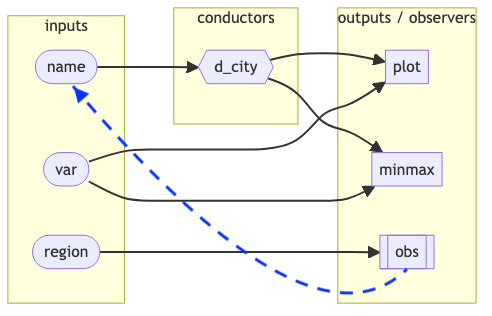
Using req()
You may have noticed that the App initializes with “West” selected for region but no initial selection for name. Because of this we have some warnings generated in the console:
This is a common occurrence with Shiny, particularly at initialization or when a user enters partial / bad input(s).
A good way to protect against this is to validate inputs before using them - the simplest way is to use req() which checks if a value is truthy and prevent further execution if not.

Truthiness in Shiny
In Shiny, “truthiness” determines whether a value should be considered valid for reactive execution.
A value is considered truthy if it is:
- Not
NULL - Not
FALSE - Not an empty vector (
character(0),numeric(0), etc.) - Not an empty string
"" - Not
NA
⌨️ Your turn - exercise 04
Instructions
Using the code provided in exercises/ex-04.R (based on demos/demo-04.R) as a starting point, add the calls to req() necessary to avoid the initialization warnings.
Also, think about if there are any other locations in our app where req() might be useful.
Tip
Thinking about how events “flow” through the reactive graph will be helpful here.
10:00
req() vs validate()
req()
Silently stop execution of a reactive expression if a condition is not met
A note on observers
Reactive graphs are meant to be acyclic, that is they should not have circular dependencies.
The use of observers can introduce cycles (accidentally) which can then lead to infinite loops, see the following example:
From Mastering Shiny
Downloading from Shiny
downloadButton()
is a special UI input widget designed to launch a download window from your Shiny app.
downloadButton() is a special case of an actionButton() with specialized server syntax. These are different from the other inputs we’ve used so far, as they are primarily used to trigger an action rather than return a value.
Rather than using an observe() or render*(), this widget is paired with the special downloadHandler() function which uses the latter’s syntax in our server function.
downloadHandler()
Specifically, within our server definition we attach the downloadHandler() to the downloadButton’s id via output, e.g.
The handler then defines two functions:
filename(), which is a function that generates a default filenamecontent(), which is a function that writes the file’s content to a temporary location
More info: Shiny documentation
Demo 05 - A download button
demos/demo-05.R
library(tidyverse)
library(shiny)
library(bslib)
d <- read_csv(here::here("data/weather.csv"))
d_vars <- c(
"Average temp" = "temp_avg",
"Min temp" = "temp_min",
"Max temp" = "temp_max",
"Total precip" = "precip",
"Snow depth" = "snow",
"Wind direction" = "wind_direction",
"Wind speed" = "wind_speed",
"Air pressure" = "air_press"
)
ui <- page_sidebar(
title = "Weather Forecasts",
sidebar = sidebar(
selectInput(
"region",
"Select a region",
choices = sort(unique(d$region)),
selected = "West"
),
selectInput(
"name",
"Select an airport",
choices = c()
),
selectInput(
"var",
"Select a variable",
choices = d_vars,
selected = "temp_avg"
),
downloadButton("download")
),
plotOutput("plot")
)
server <- function(input, output, session) {
output$download <- downloadHandler(
filename = function() {
name = input$name |>
str_replace_all(" ", "_") |>
str_to_lower()
str_c(name, ".csv", collapse = "")
},
content = function(file) {
write_csv(d_city(), file)
}
)
d_city <- reactive({
  req(input$name)

  d |>
    filter(name %in% input$name)
})
observe({
updateSelectInput(
session,
"name",
choices = d |>
distinct(region, name) |>
filter(region == input$region) |>
pull(name)
)
})
output$plot <- renderPlot({
d_city() |>
ggplot(mapping = aes(x = date, y = .data[[input$var]])) +
ggtitle(input$var) +
geom_line() +
theme_minimal()
})
}
shinyApp(ui = ui, server = server)Controlling the reactive graph
For both observers, reactives, and render functions, Shiny will automatically determine reactive dependencies for you - in some cases this is not what we want.
To explicitly control the dependencies of these reactive expressions we can modify them using bindEvent() to define the dependencies explicitly.
The first argument is the reactive expression to modify and the following is the inputs and reactives that should trigger it.
Modal dialogs
These are a popup window element that allow us to present important messages or other UI elements in a way that does not permanently clutter up the main UI of an app.
The modal dialog consists of a number of Shiny UI elements (static or dynamic) and only displays when it is triggered (usually by something like an action button or action link).
They differ from other UI elements we’ve seen so far as they are usually defined within the app’s server() function and not the ui.
More info: Shiny documentation
Demo 06 - A fancier download experience
demos/demo-06.R
library(tidyverse)
library(shiny)
library(bslib)

d <- read_csv(here::here("data/weather.csv"))

d_vars <- c(
  "Average temp" = "temp_avg",
  "Min temp" = "temp_min",
  "Max temp" = "temp_max",
  "Total precip" = "precip",
  "Snow depth" = "snow",
  "Wind direction" = "wind_direction",
  "Wind speed" = "wind_speed",
  "Air pressure" = "air_press"
)

ui <- page_sidebar(
  title = "Weather Forecasts",
  sidebar = sidebar(
    selectInput(
      "region",
      "Select a region",
      choices = sort(unique(d$region)),
      selected = "West"
    ),
    selectInput(
      "name",
      "Select an airport",
      choices = c()
    ),
    selectInput(
      "var",
      "Select a variable",
      choices = d_vars,
      selected = "temp"
    ),
    actionButton("export_modal", "Export data")
  ),
  plotOutput("plot")
)

server <- function(input, output, session) {
  observe({
    showModal(
      modalDialog(
        title = "Download data",
        dateRangeInput(
          "dl_dates",
          "Select date range",
          start = min(d_city()$date),
          end = max(d_city()$date)
        ),
        checkboxGroupInput(
          "dl_vars",
          "Select variables to download",
          choices = names(d),
          selected = names(d),
          inline = TRUE
        ),
        footer = list(
          downloadButton("download"),
          modalButton("Cancel")
        )
      )
    )
  }) |>
    bindEvent(input$export_modal)

  output$download <- downloadHandler(
    filename = function() {
      name = input$name |>
        str_replace_all(" ", "_") |>
        str_to_lower()
      str_c(name, ".csv", collapse = "")
    },
    content = function(file) {
      write_csv(
        d_city() |>
          filter(date >= input$dl_dates[1] & date <= input$dl_dates[2]) |>
          select(input$dl_vars),
        file
      )
    }
  )

  d_city <- reactive({
    req(input$name)
    d |>
      filter(name %in% input$name)
  })

  observe({
    updateSelectInput(
      inputId = "name",
      choices = d |>
        filter(region == input$region) |>
        pull(name) |>
        unique() |>
        sort()
    )
  })

  output$plot <- renderPlot({
    d_city() |>
      ggplot(mapping = aes(x = date, y = .data[[input$var]])) +
      ggtitle(input$var) +
      geom_line() +
      theme_minimal()
  })
}

shinyApp(ui = ui, server = server)
Uploading to Shiny
fileInput() widget
This widget behaves a bit differently than the others we have seen - like the other widgets it returns a value via input$<id> but the value returned changes based on whether or not a file has been uploaded.
Specifically, before the file is uploaded, the input will return NULL. After file(s) are uploaded the input returns a data frame with one row per file and the following columns:
name- the original filename (from the client’s system)size- file size in bytestype- file mime type, usually determined by the file extensiondatapath- location of the temporary file on the server
Your app is then responsible for reading in and processing the uploaded file(s) as needed.
More info: Shiny documentation
Using fileInput()
library(tidyverse)
library(shiny)
library(bslib)

ui = page_fluid(
  fileInput("upload", "Upload a file", accept = ".csv"),
  h3("Result:"),
  tableOutput("result"),
  h3("Content:"),
  tableOutput("data")
)

server = function(input, output, session) {
  output$result = renderTable({
    req(input$upload)
    input$upload
  })

  output$data = renderTable({
    req(input$upload)
    ext = tools::file_ext(input$upload$datapath)

    validate(
      need(ext == "csv", "Please upload a csv file")
    )

    readr::read_csv(input$upload$datapath) |>
      head()
  })
}

shinyApp(ui = ui, server = server)
fileInput() hints
input$uploadwill default toNULLwhen the app is loaded, usingreq(input$upload)for downstream consumers prevents errors/warnings until a file is uploaded- Files in
datapathare temporary and should be treated as ephemeral, additional uploads can result in previous files being deleted typeis at best a guess - validate uploaded files and write defensive code- The
acceptargument helps to limit file types but cannot prevent bad uploads
⌨️ Your turn - exercise 05
Instructions
Starting with the code in exercises/ex-05.R replace the preloading of the weather data, d, with a reactive() version that is populated via a fileInput() widget.
You should then be able to get the same app behavior as before once data/weather.csv is uploaded. You can also check that your app works with the smaller data/jfk_weather.csv dataset as well.
Tip
Remember that anywhere that uses either d will now need to use d() instead.
12:00
Wrap-up
Recap
- Explicitly define reactive dependencies using
bindEvent() - Use modals for popup dialog that don’t permanently clutter the UI
Acknowledgements
- Slides derived in part from posit::conf 2025 - Shiny for R Workshop by Colin Rundel and licensed under a Creative Commons Attribution 4.0 International License.
